---
title: Create and Submit Payout Requests
---

[Skip to content](https://www.learn.vsdigitalhealth.com/dev-payouts#main-content)

![](https://www.learn.vsdigitalhealth.com/hs-fs/hubfs/VSDH%20Logo.png?width=367&height=140&name=VSDH%20Logo.png)Homepage

# [Create and Submit Payout Requests in Nightingale Admin](https://app.guidde.com/playbooks/cLHvRkxuuwkYKpsn3coR9o)

<iframe style="position: absolute; left: 0px; top: 0px; border-radius: 10px; margin: 0px auto; display: block;" title="Create and Submit Payout Requests in Nightingale Admin" allow="clipboard-write" xml="lang" src="https://embed.app.guidde.com/playbooks/cLHvRkxuuwkYKpsn3coR9o?" width="560" height="315" sandbox="allow-popups allow-popups-to-escape-sandbox allow-scripts allow-forms allow-same-origin allow-presentation" frameborder="0" allowfullscreen="true"></iframe>

This tutorial guides you through creating and submitting payout requests within the Nightingale Admin platform.

### Go to [backoffice.vsdigitalhealth.com](https://backoffice.vsdigitalhealth.com)

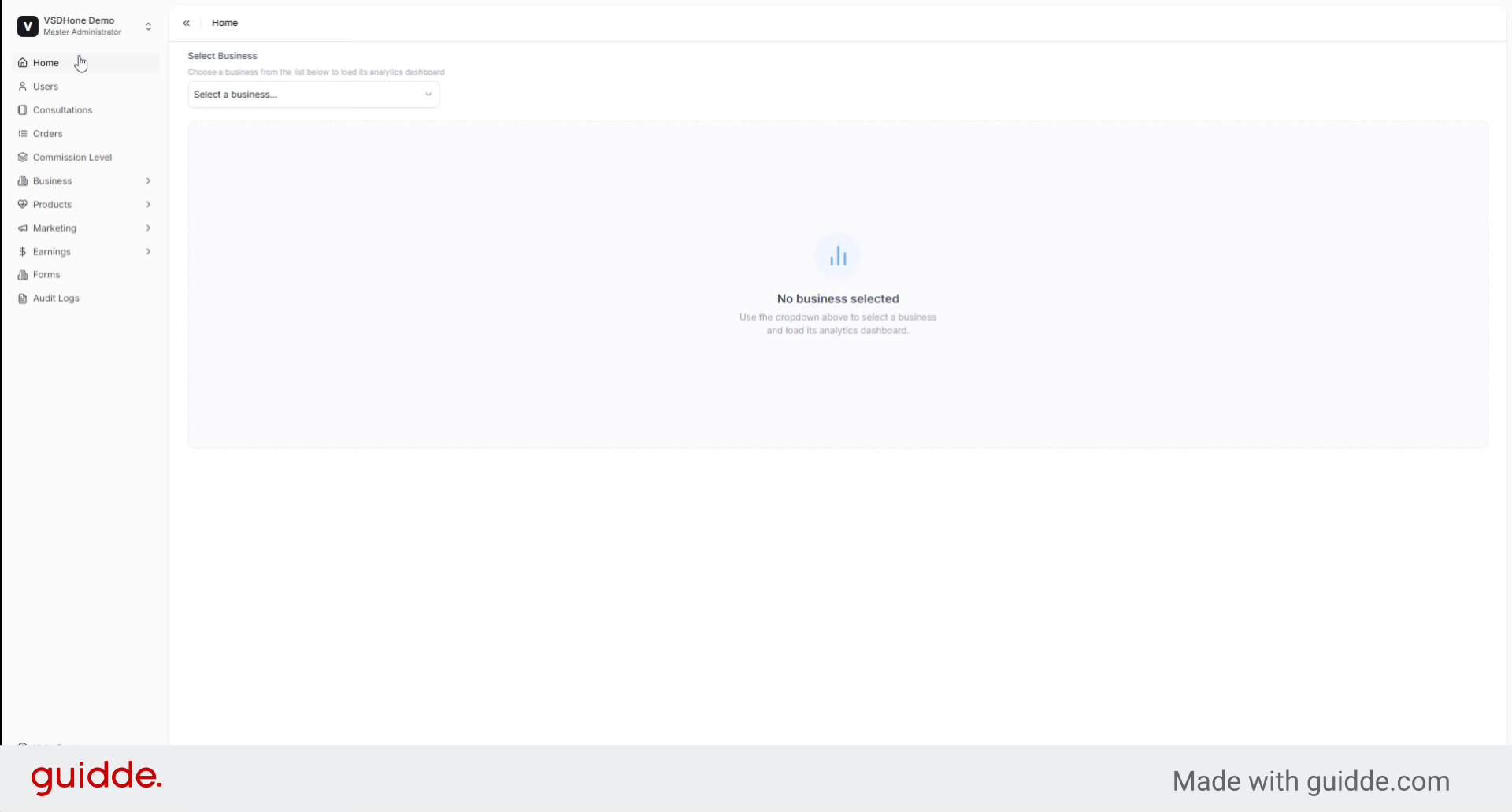
### 1. Introduction

Before starting, ensure you have access to the Vsdigitalhealth application and necessary payout details ready.
![Introduction](https://static.guidde.com/v0/qg%2FrO2Jd4OSKscnHI1BTKl6pLBNImS2%2FcLHvRkxuuwkYKpsn3coR9o%2FqovK9mhKgAHcGGvTfQjwvg_doc.png?alt=media&token=030410dc-dc0f-4c9d-8385-0baf6b1a4ca8)

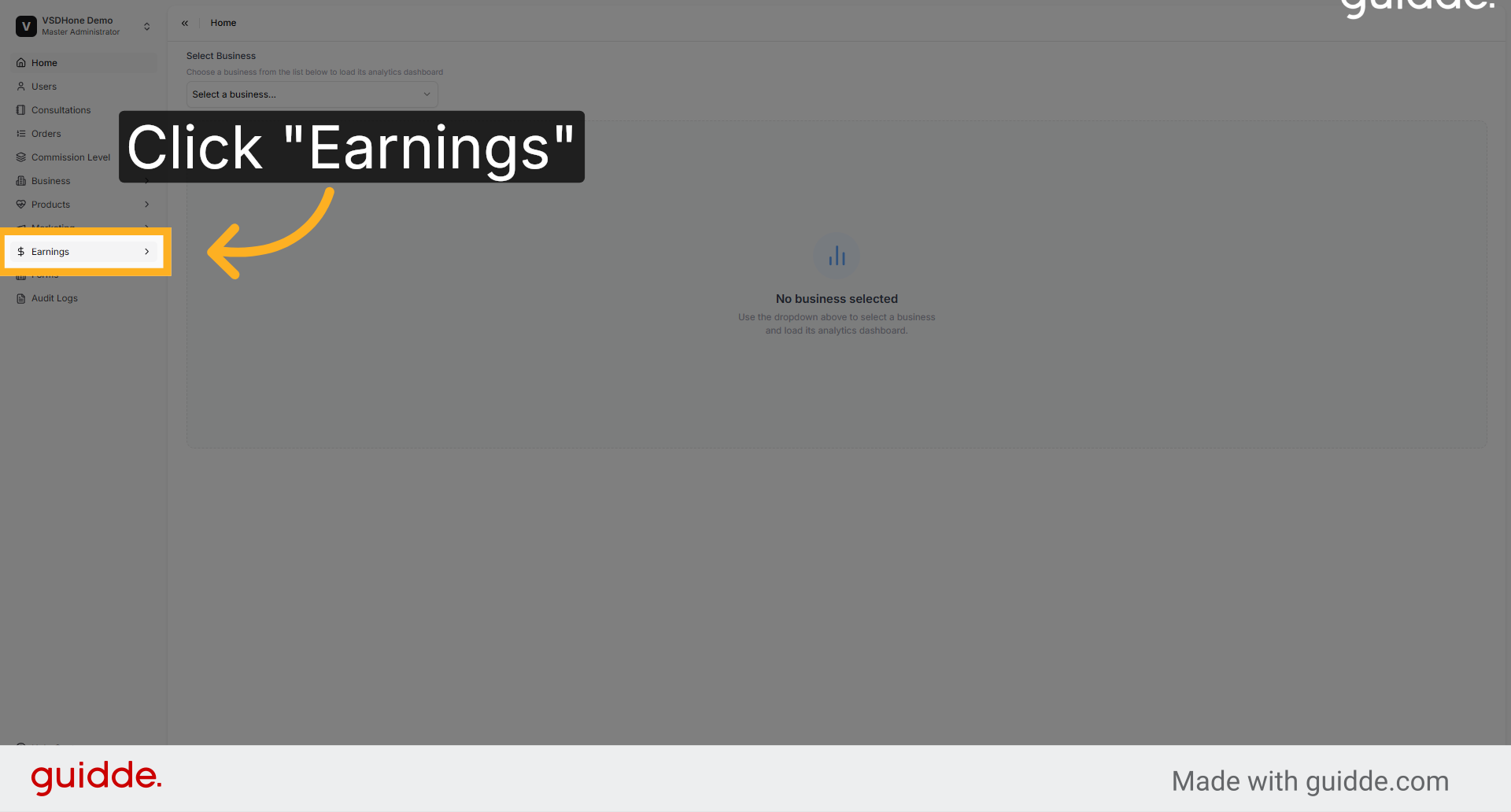
### 2. Navigate to Earnings Section

Access the Earnings section in Nightingale Admin to review your available earnings and prepare for payout processing.
![Navigate to Earnings Section](https://static.guidde.com/v0/qg%2FrO2Jd4OSKscnHI1BTKl6pLBNImS2%2FcLHvRkxuuwkYKpsn3coR9o%2FpVQoKEUHiVNaxL62QiADZZ_doc.png?alt=media&token=2edbfe81-078d-4480-9127-df7c5d793c66)

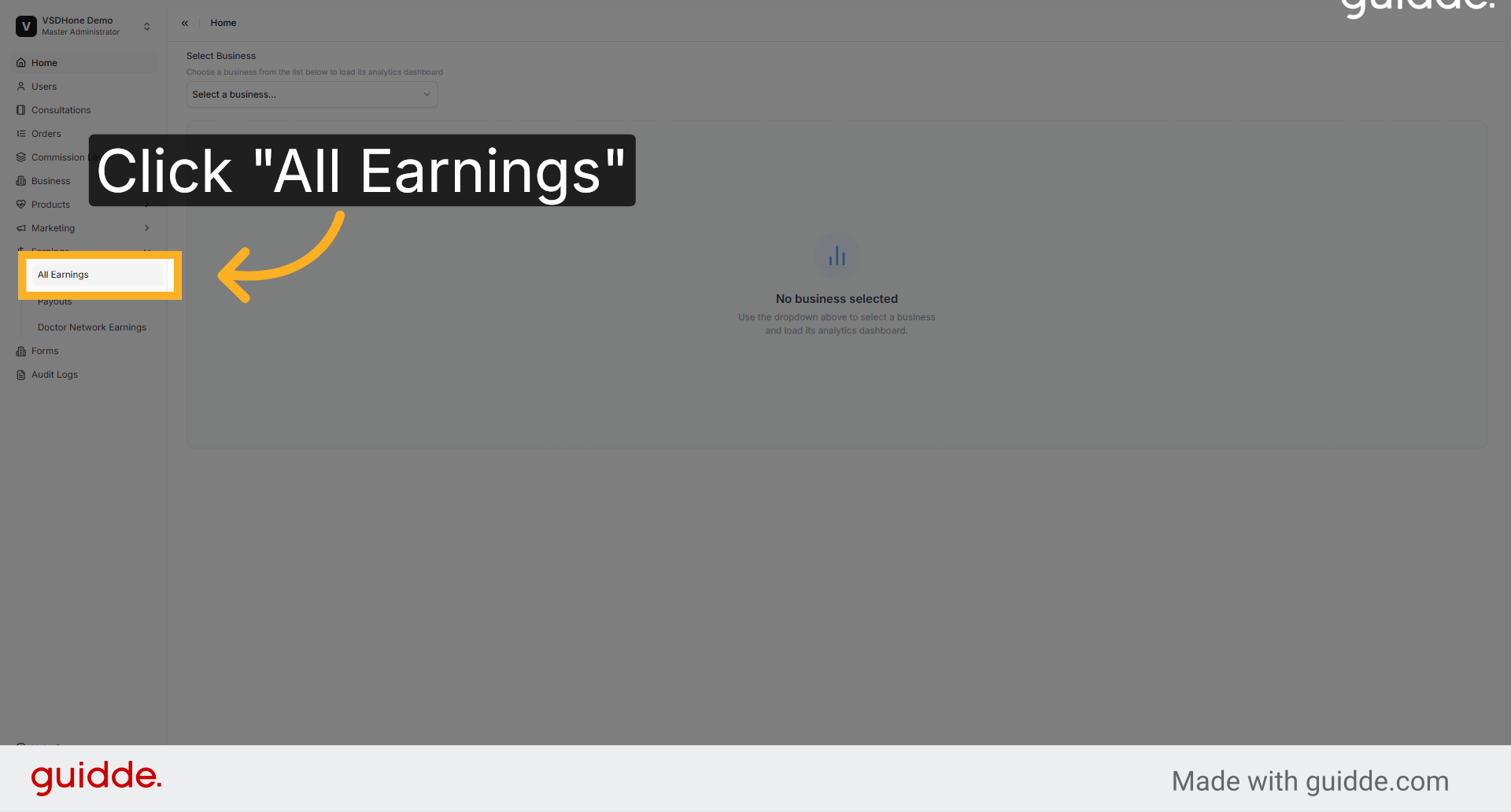
### 3. Open All Earnings List

Click All Earnings to view the complete list of earnings eligible for payout within the platform.
![Open All Earnings List](https://static.guidde.com/v0/qg%2FrO2Jd4OSKscnHI1BTKl6pLBNImS2%2FcLHvRkxuuwkYKpsn3coR9o%2FoyYhSxHpYDKXZ49KP9X8Wx_doc.png?alt=media&token=e0ed94a0-ff60-483c-8253-aa2914f49a4e)

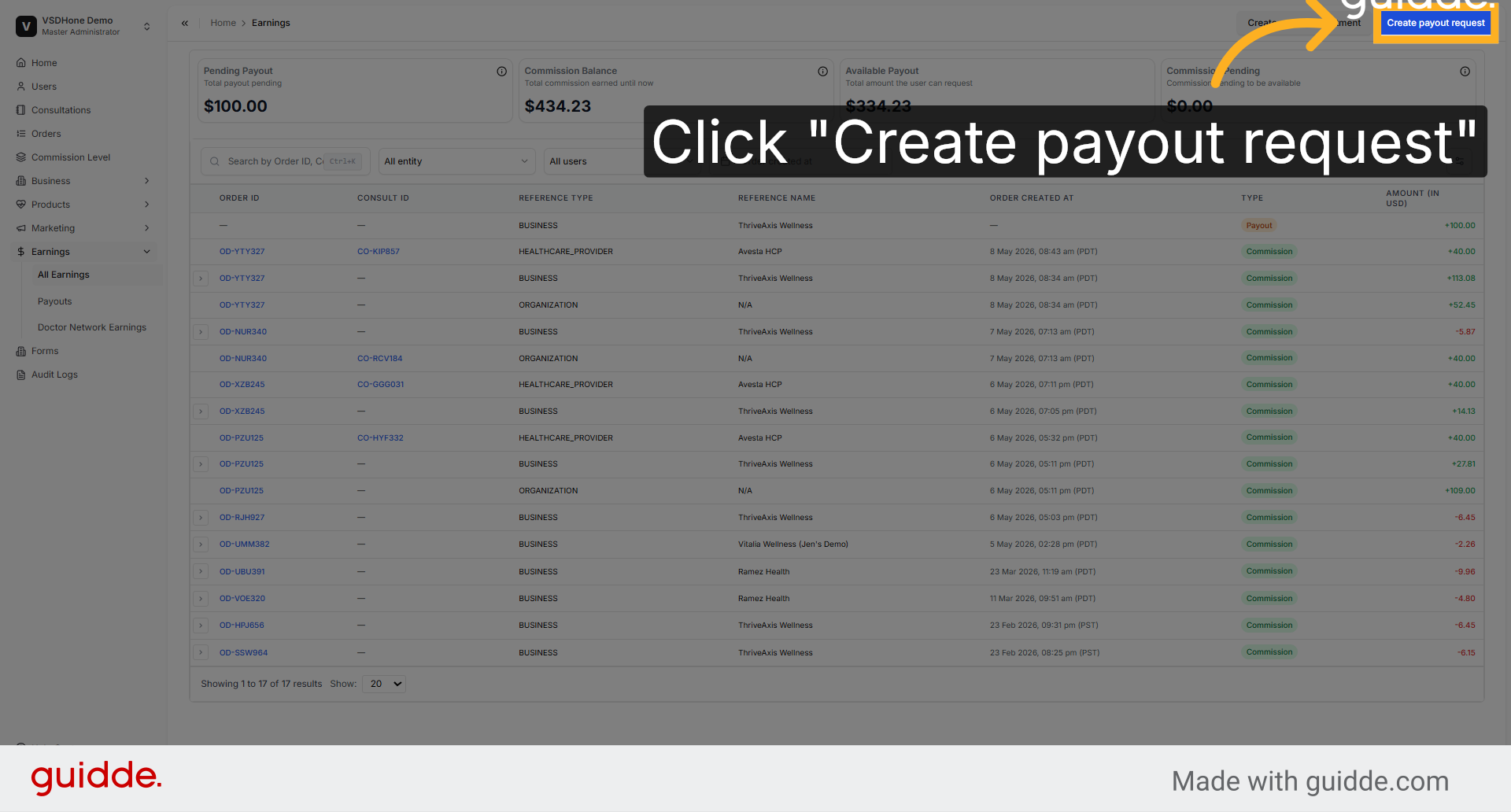
### 4. Initiate Payout Request Creation

Select Create payout request to start the process of submitting a new payout for your earnings.
![Initiate Payout Request Creation](https://static.guidde.com/v0/qg%2FrO2Jd4OSKscnHI1BTKl6pLBNImS2%2FcLHvRkxuuwkYKpsn3coR9o%2Fdvjh6RUQ3Z4LdDFSavehkY_doc.png?alt=media&token=8878badb-d5bf-4c60-b4a4-5852a06cb8b7)

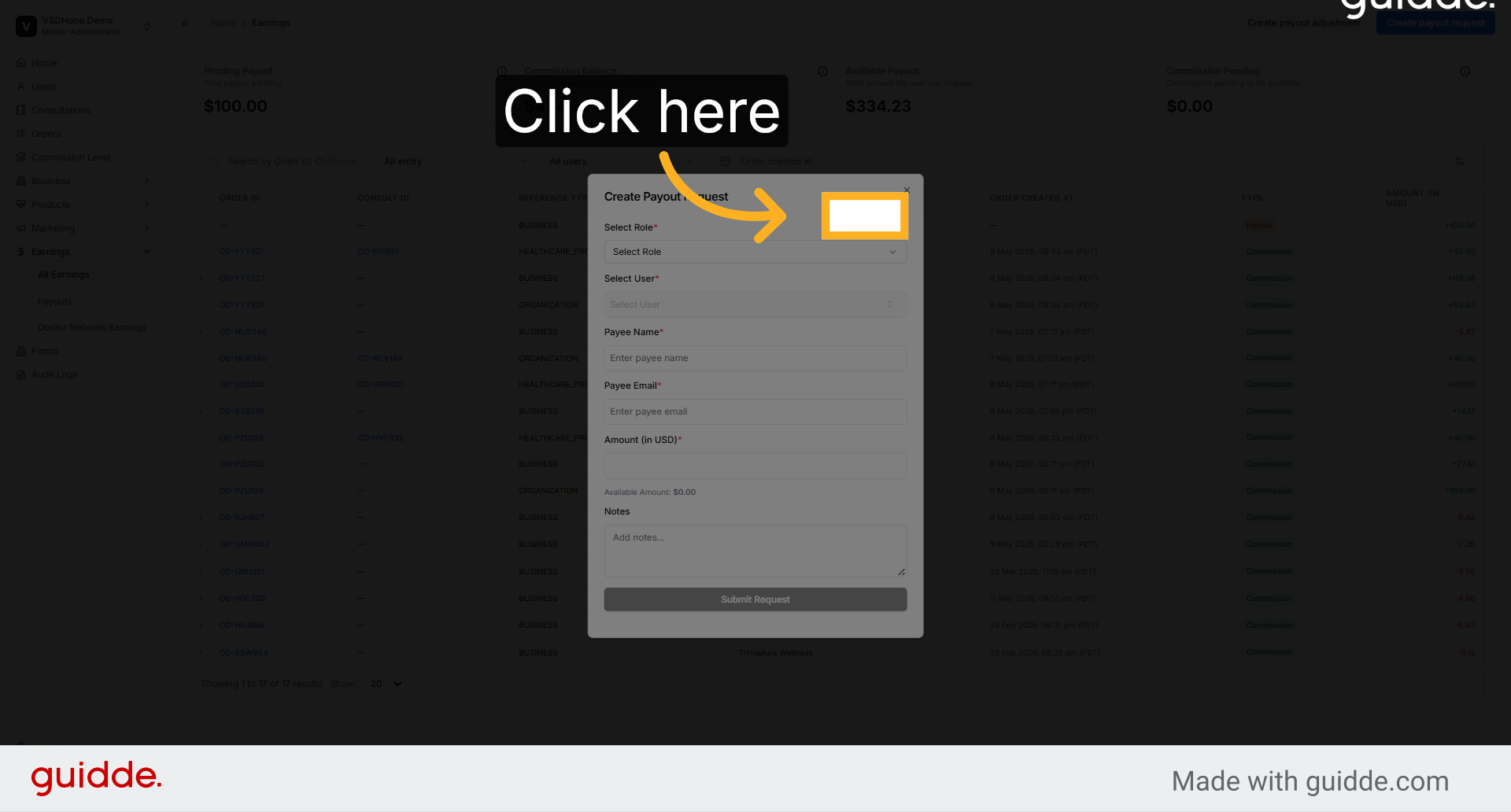
### 5. Access Payee Name Field

Click the field to enter the payee's name, which identifies the recipient of the payout.
![Access Payee Name Field](https://static.guidde.com/v0/qg%2FrO2Jd4OSKscnHI1BTKl6pLBNImS2%2FcLHvRkxuuwkYKpsn3coR9o%2F5HAydHg7TLNceNjtkYK5KS_doc.png?alt=media&token=5213fec6-6258-4e41-be32-e58ffba93d94)

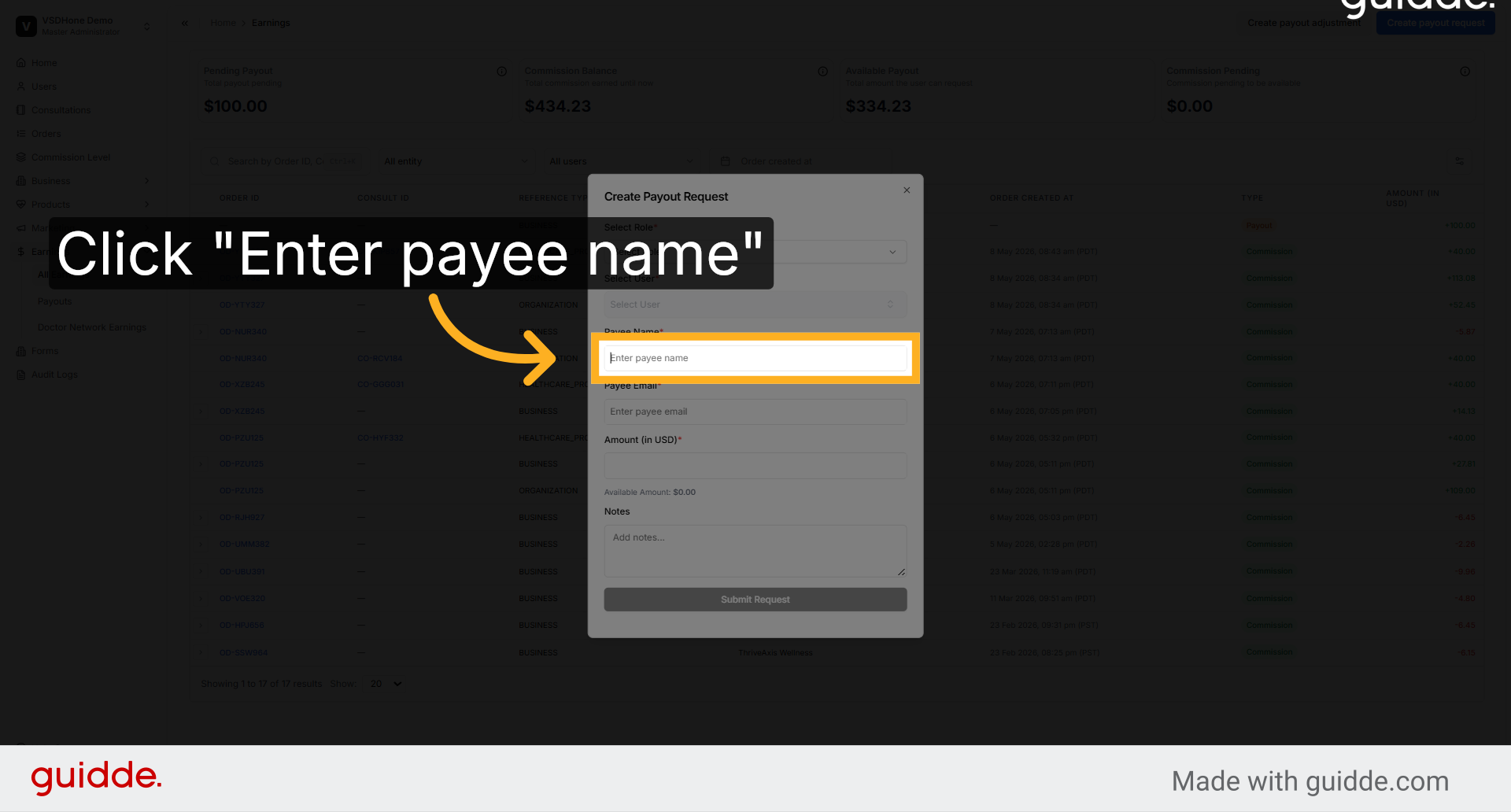
### 6. Enter Payee Name

Input the payee's full name to ensure the payout is directed to the correct individual or entity.
![Enter Payee Name](https://static.guidde.com/v0/qg%2FrO2Jd4OSKscnHI1BTKl6pLBNImS2%2FcLHvRkxuuwkYKpsn3coR9o%2Fepm2eCxozYFGeCjynCEaBm_doc.png?alt=media&token=95a64525-c974-4868-86b6-ede421fd90b5)

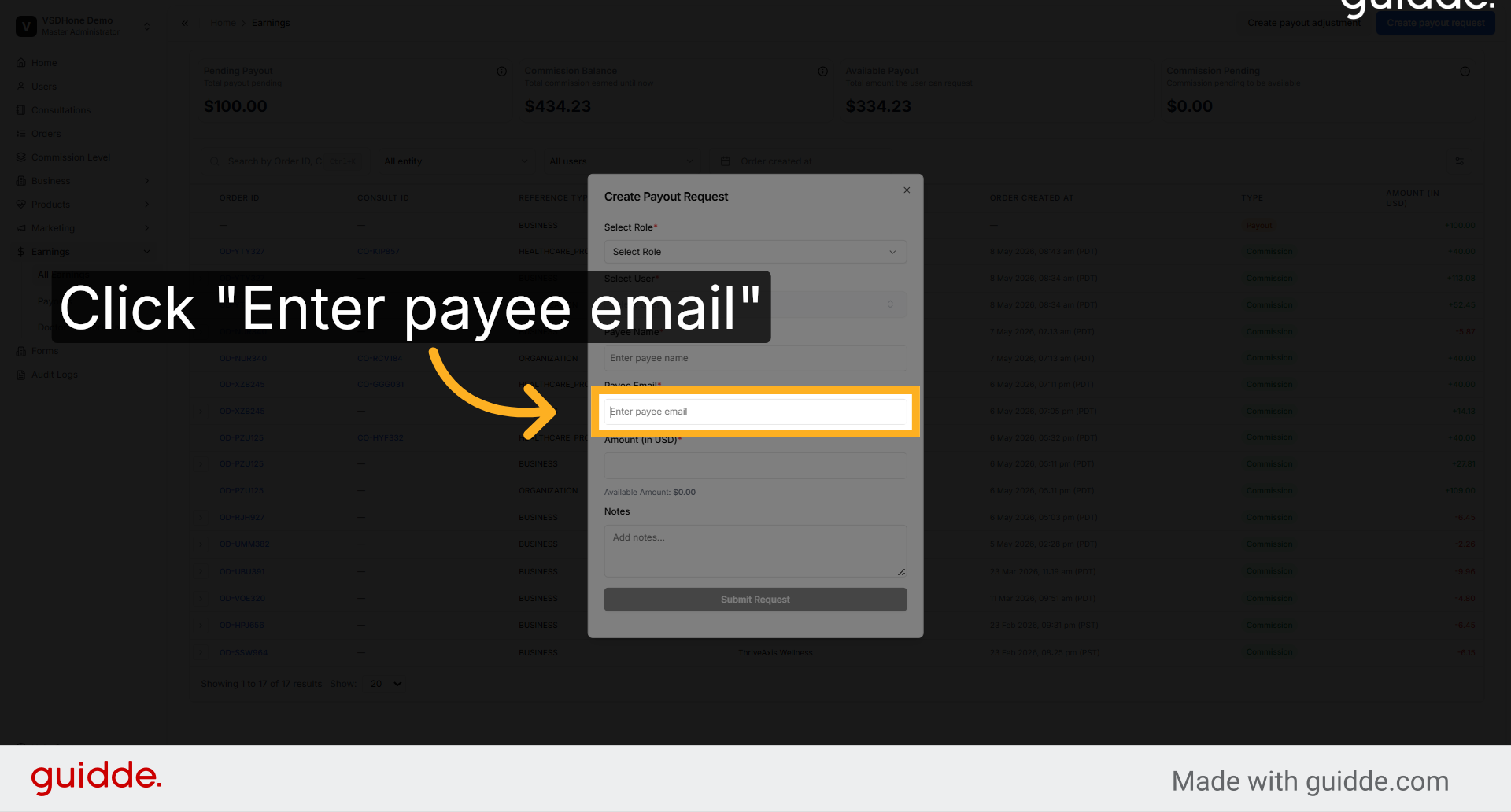
### 7. Enter Payee Email Address

Provide the payee's email address to facilitate communication and confirmation of the payout request.
![Enter Payee Email Address](https://static.guidde.com/v0/qg%2FrO2Jd4OSKscnHI1BTKl6pLBNImS2%2FcLHvRkxuuwkYKpsn3coR9o%2FdJtMphbbVXXQ4npsxpouY2_doc.png?alt=media&token=bfbf0c14-7572-4f15-90a8-babb5440525a)

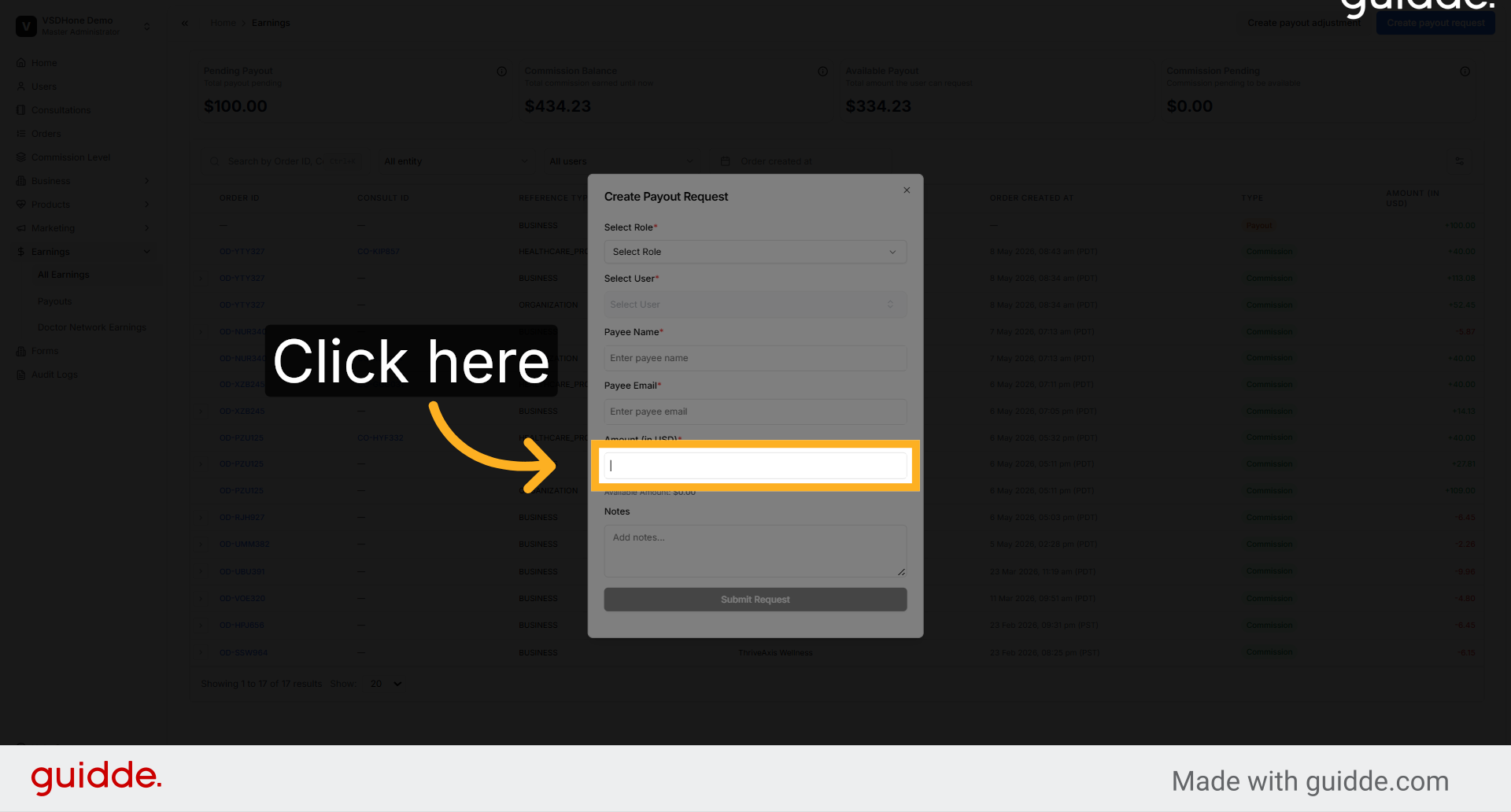
### 8. Submit Payout Request

Click the submission button to finalize and send the payout request for processing within Nightingale Admin.
![Submit Payout Request](https://static.guidde.com/v0/qg%2FrO2Jd4OSKscnHI1BTKl6pLBNImS2%2FcLHvRkxuuwkYKpsn3coR9o%2FbTwfkdsn5ug22RNf7cpSQC_doc.png?alt=media&token=05502fb9-d1ed-4cd6-85e0-cddf3593d502)

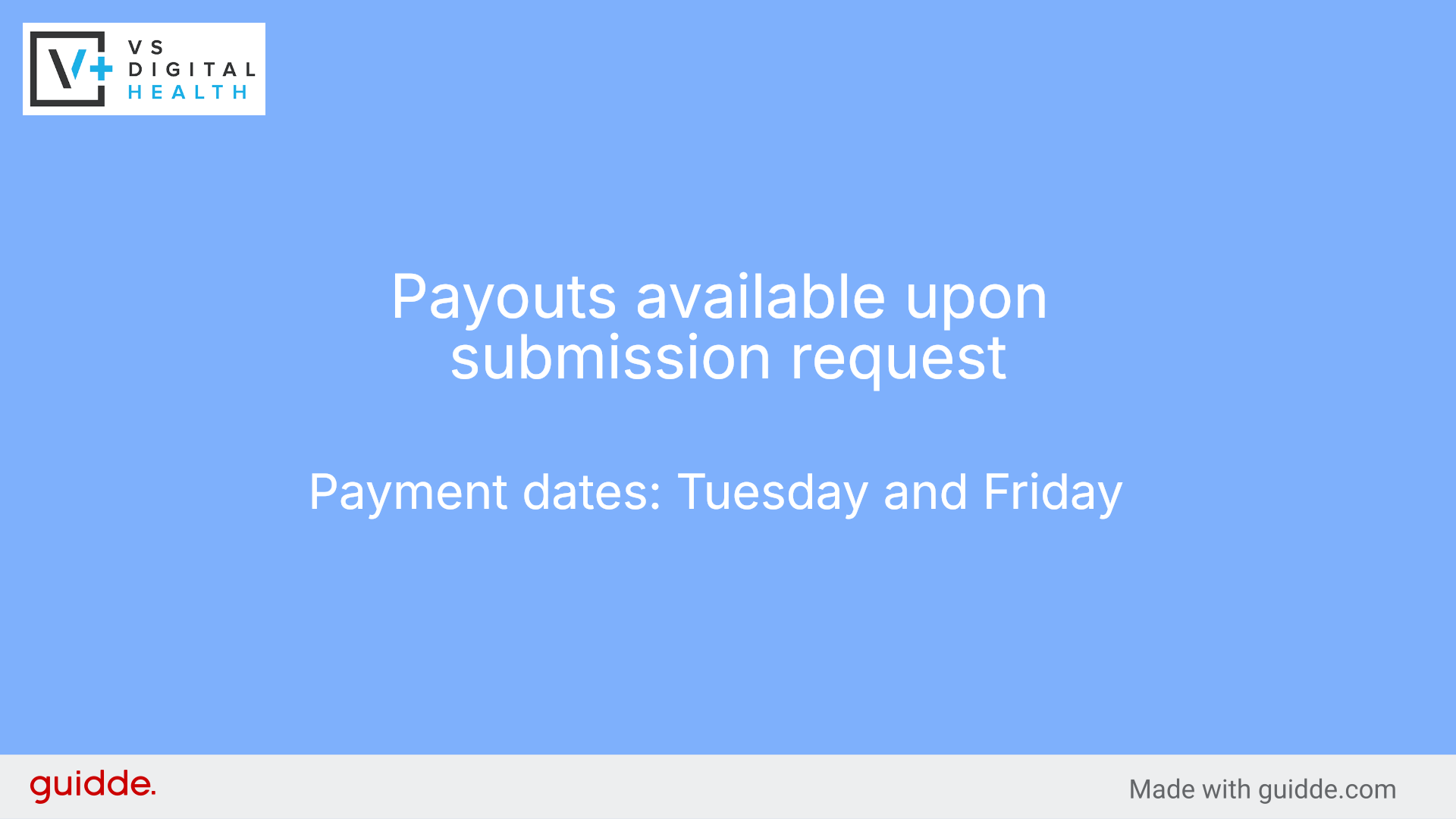
### 9. Payouts available upon submission request
![](https://static.guidde.com/v0/qg%2FrO2Jd4OSKscnHI1BTKl6pLBNImS2%2FcLHvRkxuuwkYKpsn3coR9o%2FsNt3oPL1etwtZNnjyWwz4V_doc.png?alt=media&token=90bc58bd-d729-40c1-9da3-52f5600c7cb6)

You have successfully created and submitted a payout request in Nightingale Admin. Verify the payout status in the All Earnings section and proceed with additional payout management tasks as needed.

[Powered by **guidde**](https://www.guidde.com)

[![](https://www.learn.vsdigitalhealth.com/hs-fs/hubfs/VSDH%20Logo.png?width=367&height=140&name=VSDH%20Logo.png)](https://www.learn.vsdigitalhealth.com/?hsLang=en)

<https://www.linkedin.com><https://www.facebook.com><https://www.twitter.com><https://www.instagram.com><https://www.tiktok.com>

---

Privacy Policy · Legal · © 2026. All rights reserved.