
This tutorial guides you through creating and submitting payout requests within the Nightingale Admin platform.
Go to backoffice.vsdigitalhealth.com
1. Introduction
Before starting, ensure you have access to the Vsdigitalhealth application and necessary payout details ready.
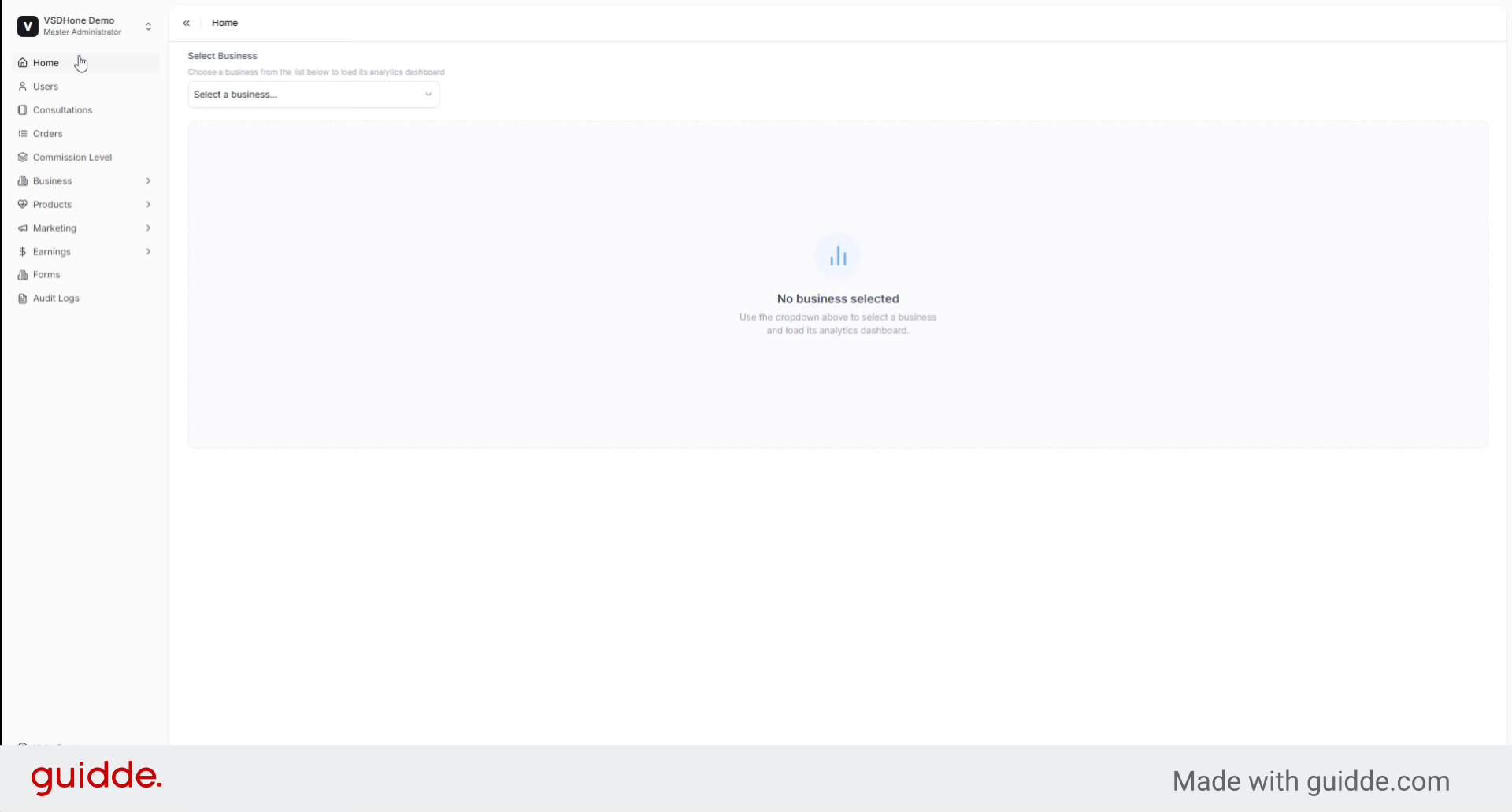
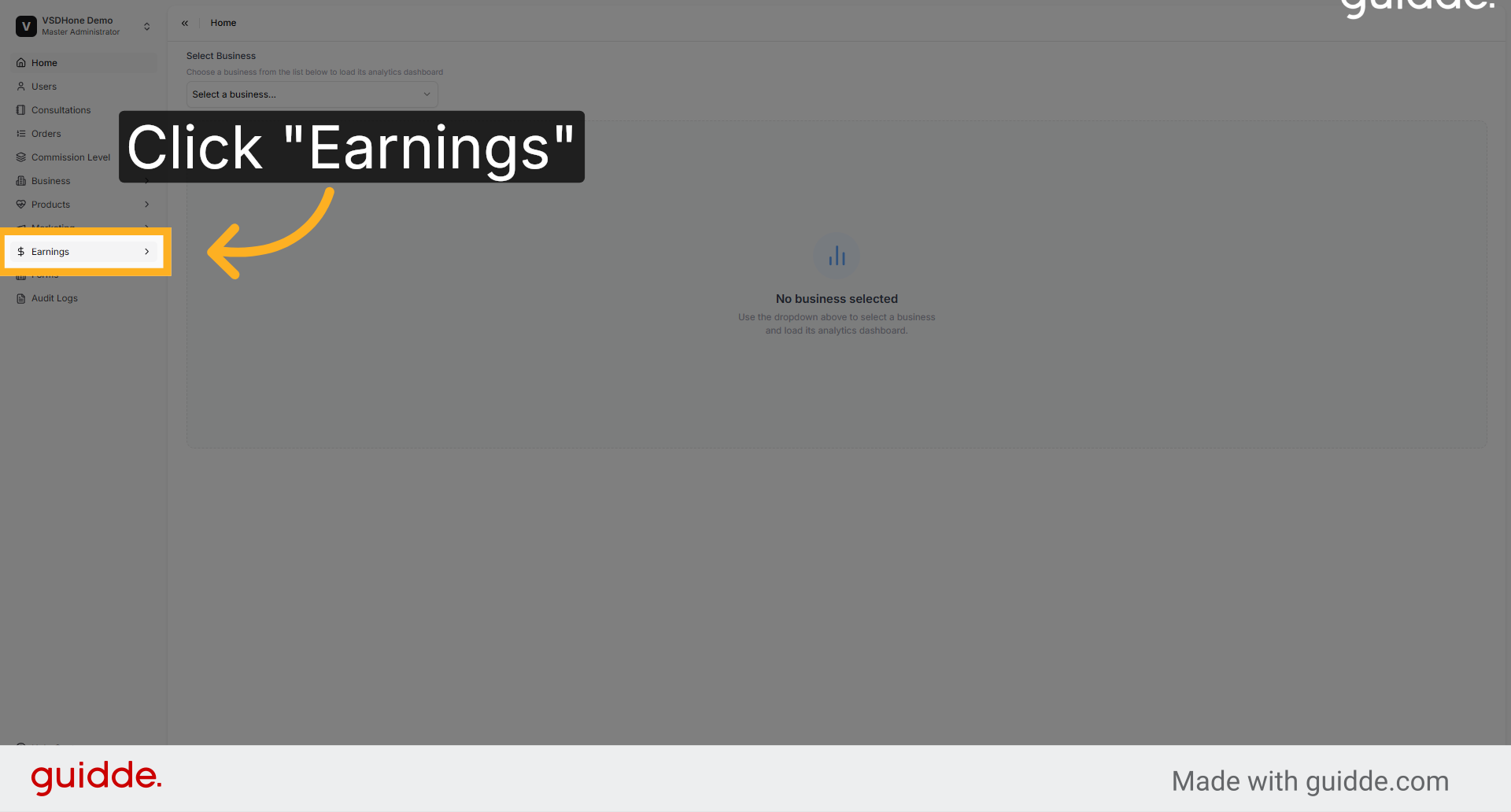
2. Navigate to Earnings Section
Access the Earnings section in Nightingale Admin to review your available earnings and prepare for payout processing.
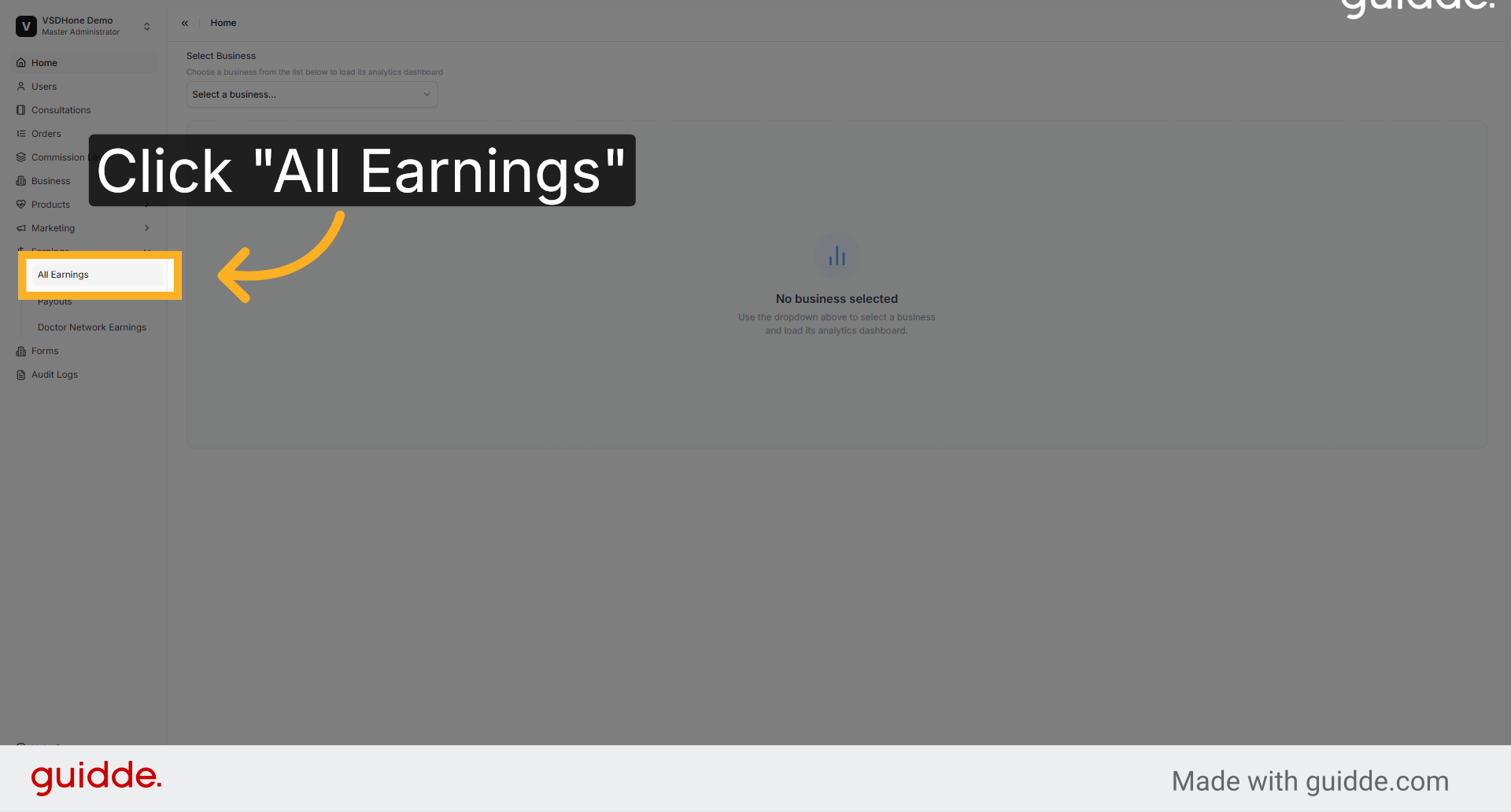
3. Open All Earnings List
Click All Earnings to view the complete list of earnings eligible for payout within the platform.
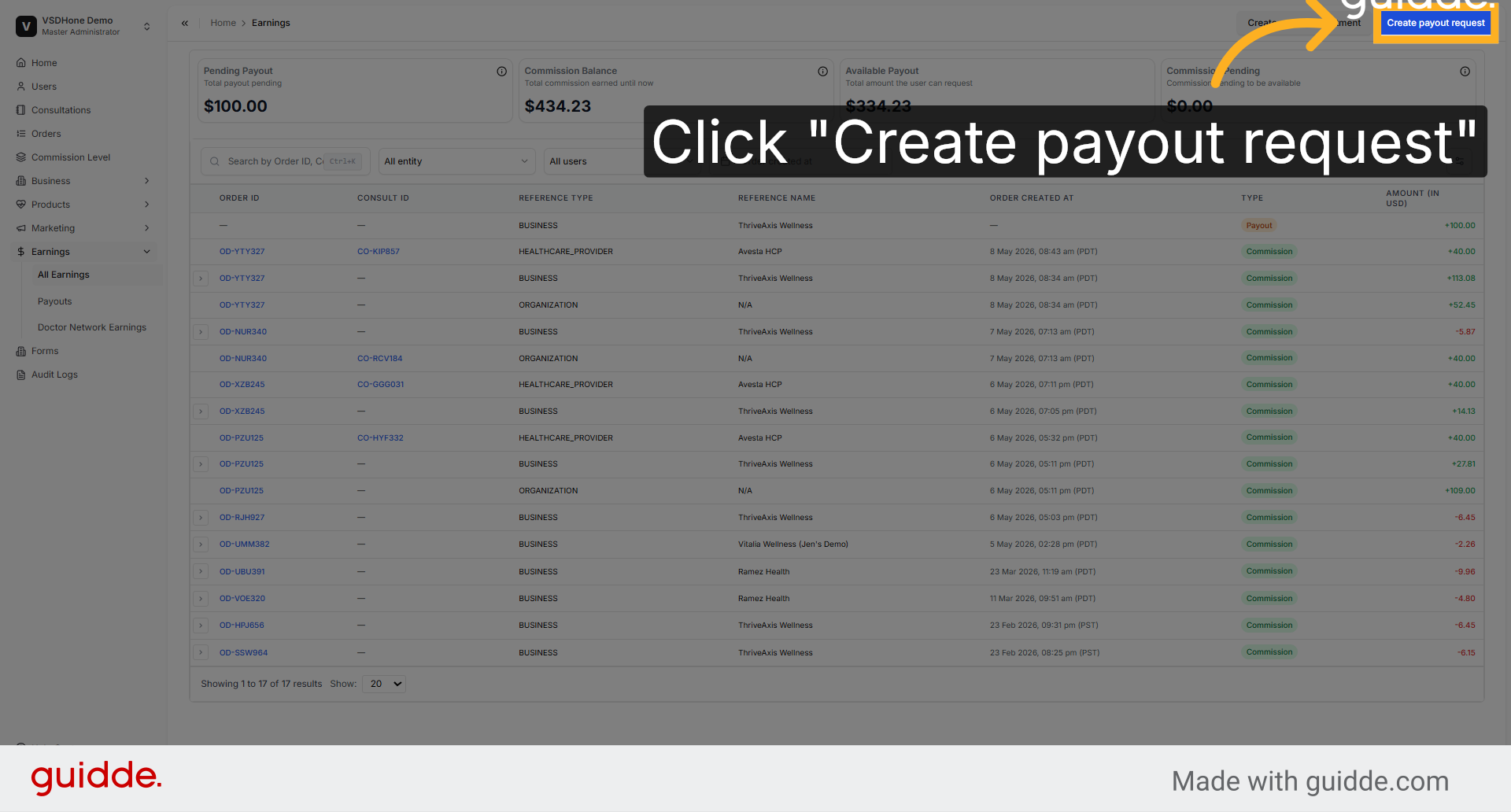
4. Initiate Payout Request Creation
Select Create payout request to start the process of submitting a new payout for your earnings.
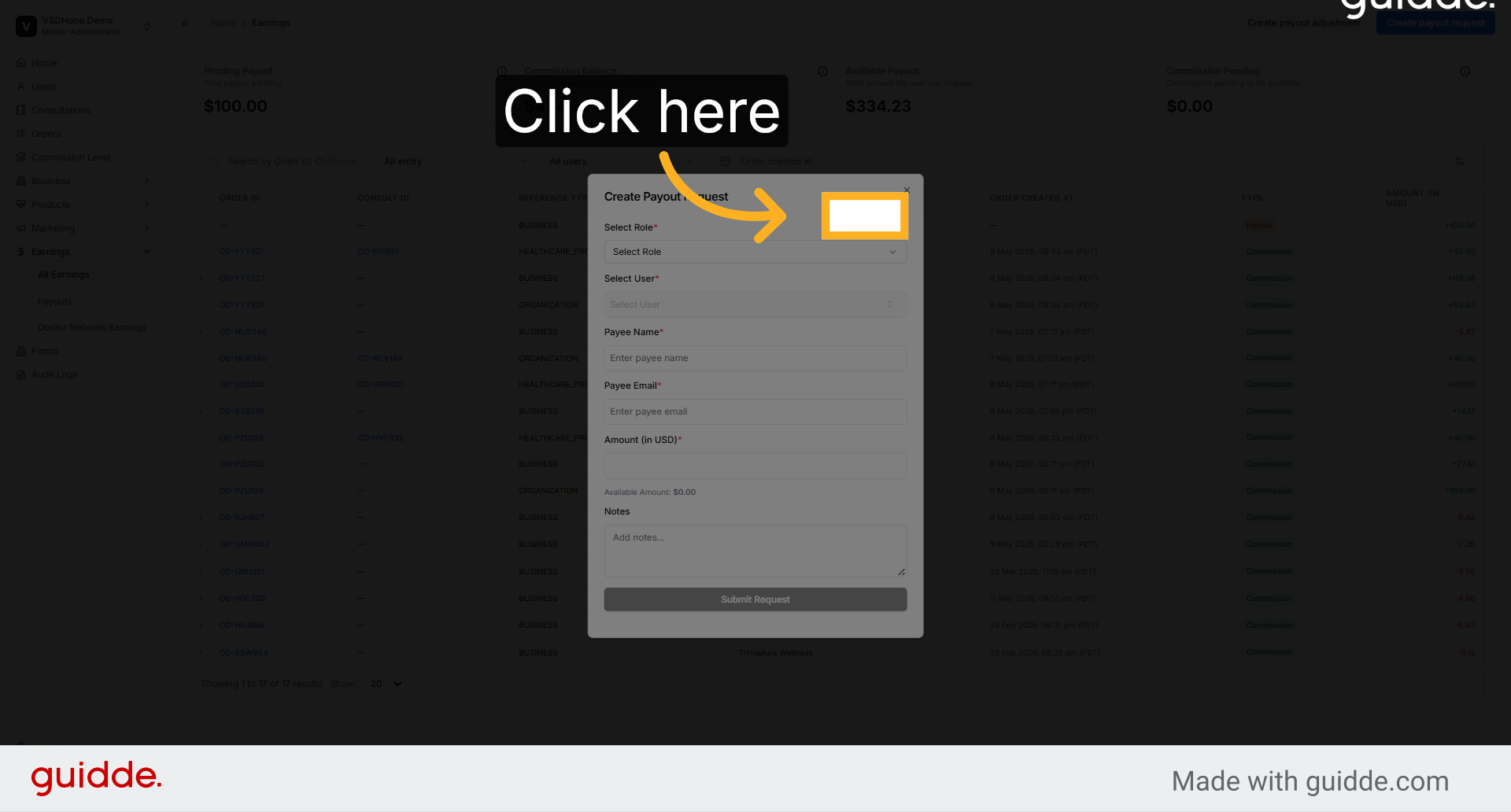
5. Access Payee Name Field
Click the field to enter the payee's name, which identifies the recipient of the payout.
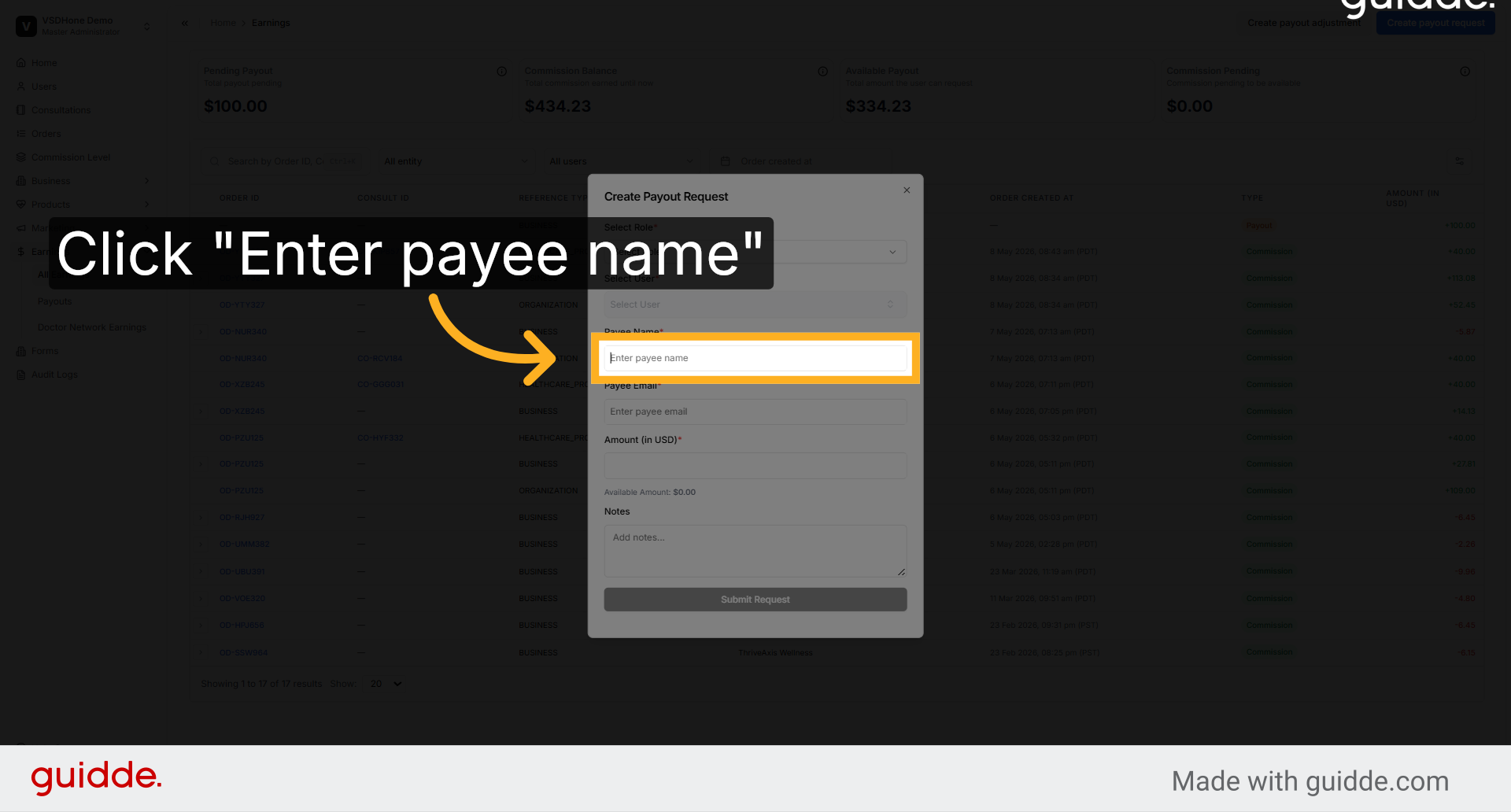
6. Enter Payee Name
Input the payee's full name to ensure the payout is directed to the correct individual or entity.
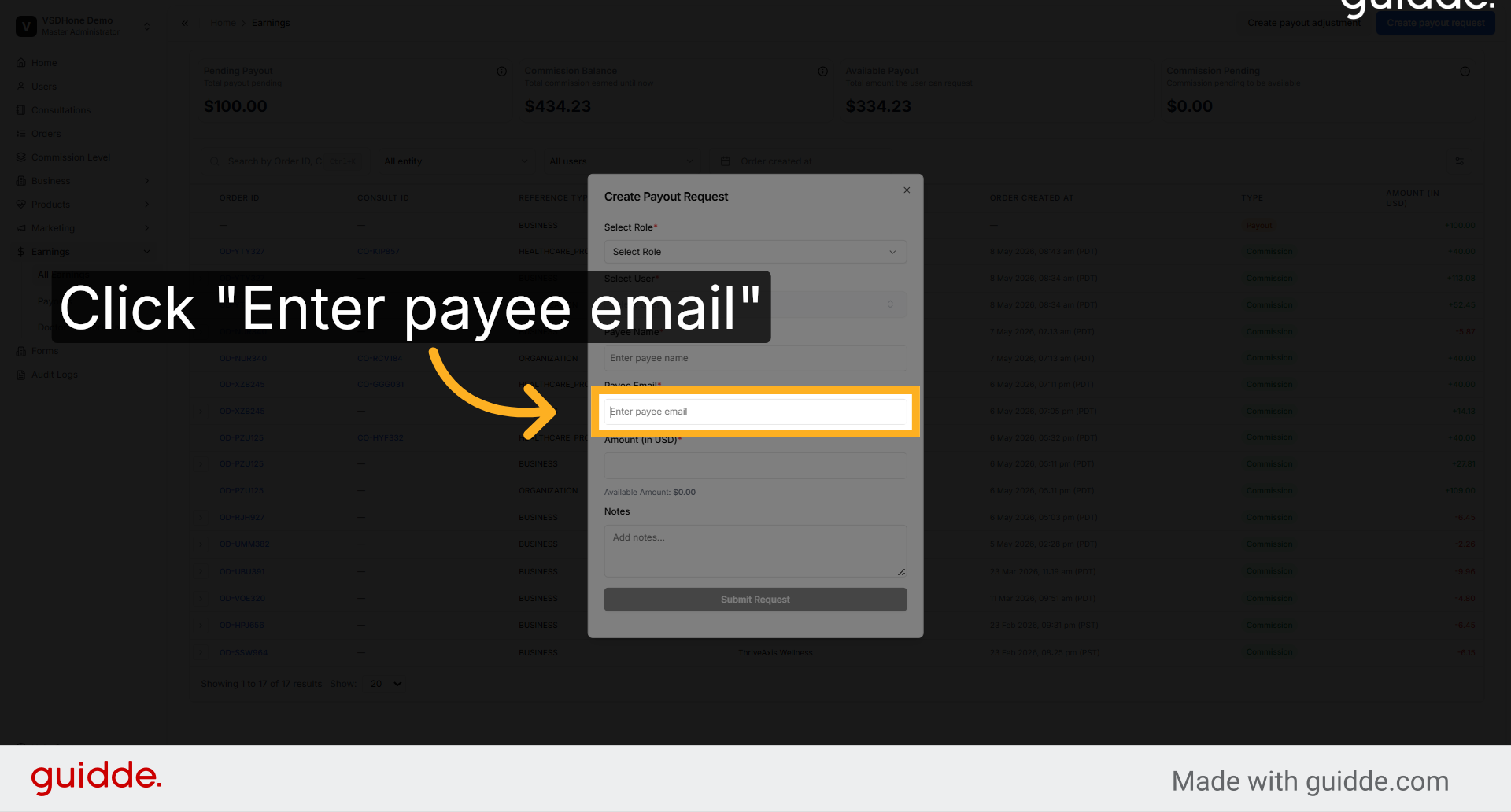
7. Enter Payee Email Address
Provide the payee's email address to facilitate communication and confirmation of the payout request.
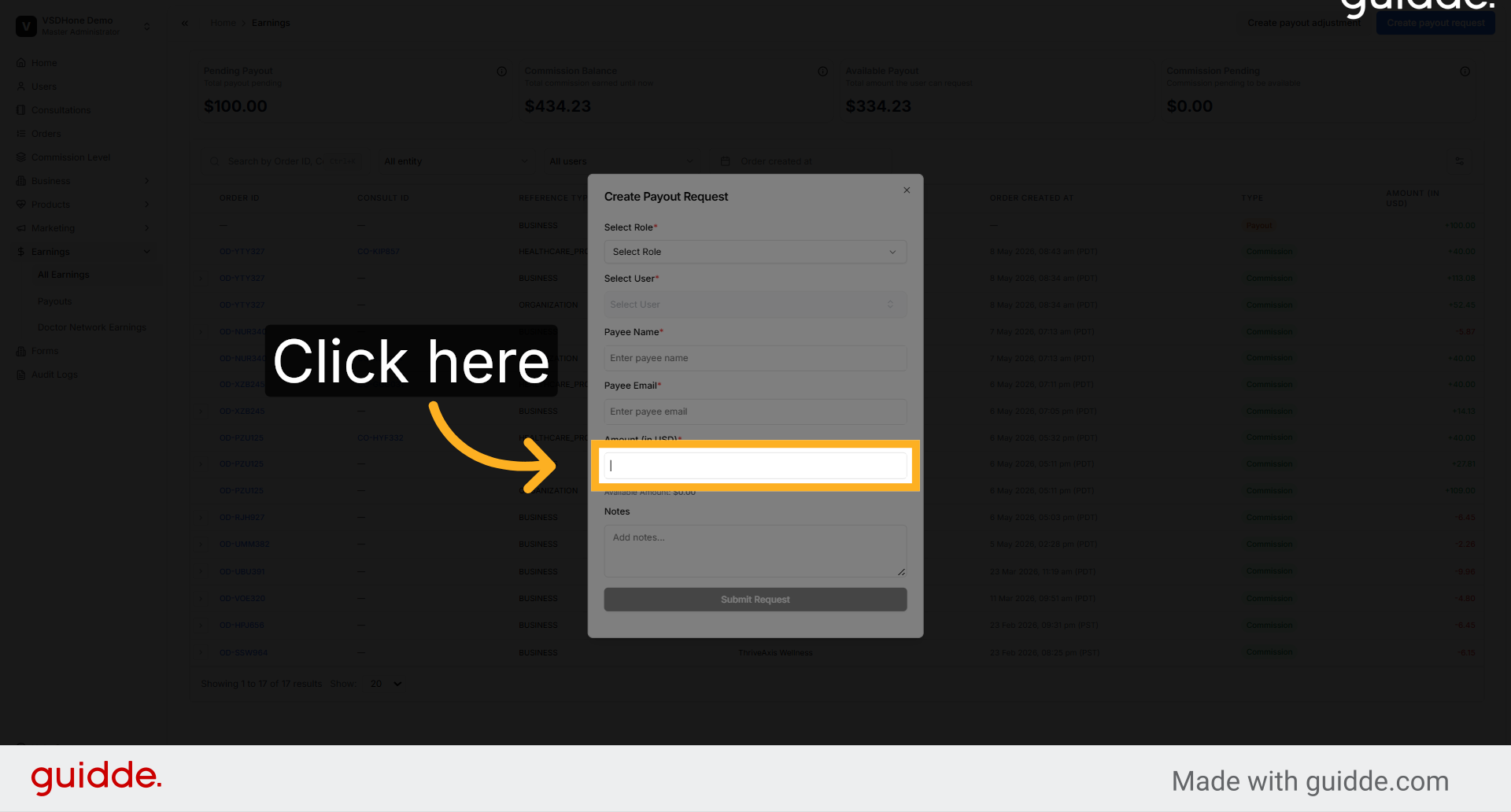
8. Submit Payout Request
Click the submission button to finalize and send the payout request for processing within Nightingale Admin.
9. Payouts available upon submission request
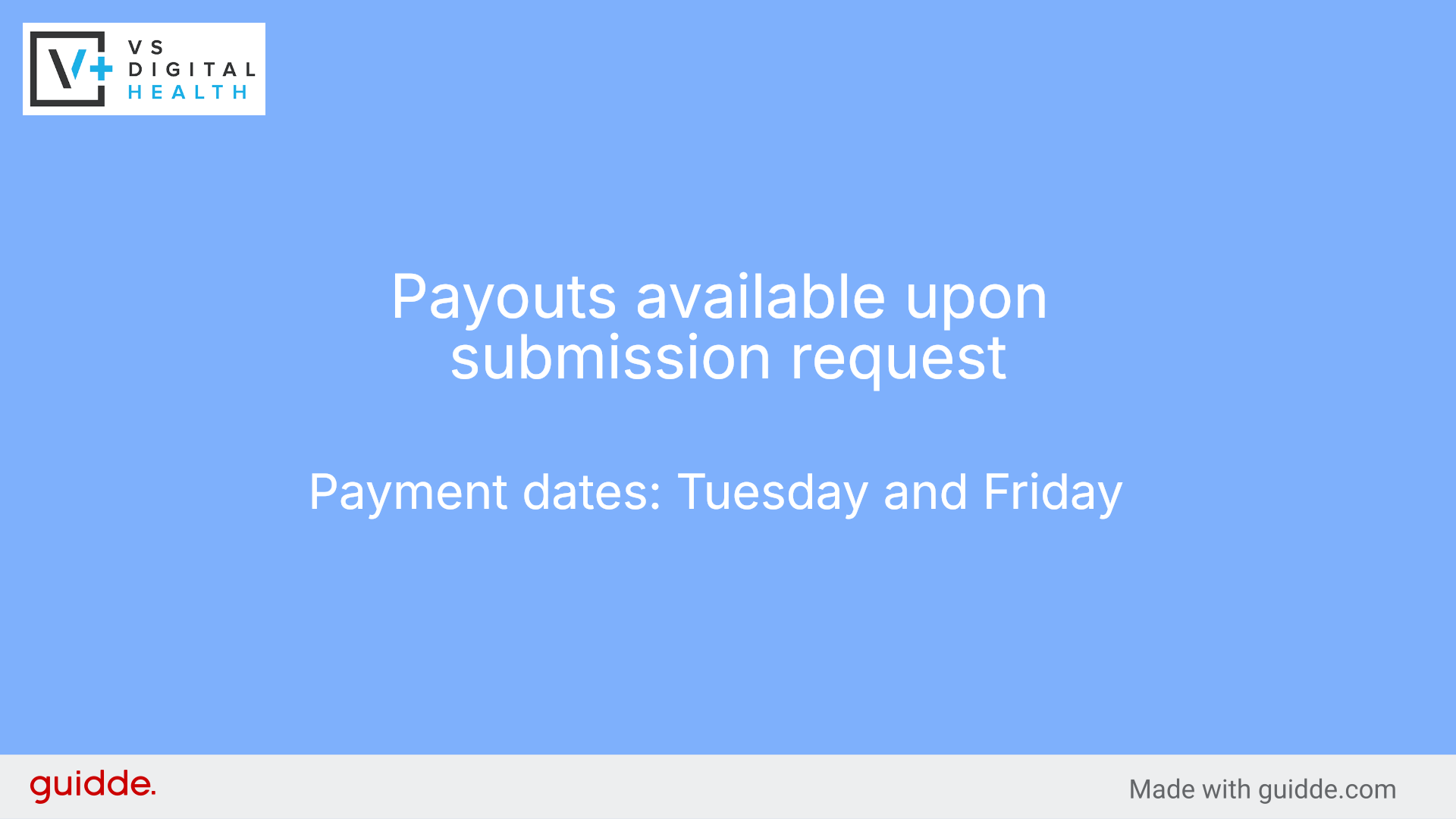
You have successfully created and submitted a payout request in Nightingale Admin. Verify the payout status in the All Earnings section and proceed with additional payout management tasks as needed.